Just A Small Guideline

Feel free to browse the site. Don't be afraid to leave comments, they're supportive.
Please follow me on Twitter @ehldmnt and retweet my posts.
Showing posts with label command line interface. Show all posts

Sunday, July 28, 2013

[Python 3] Console Battery Monitor In Python [Using BAT0]

I never took up Lua, despite having a Lua-based Window Manager (AwesomeWM), I've been able to feel my way around with the help of some friends as well as a bit of googling. "Implementing a battery monitor into the wibox seemed wasteful," I thought. "Why not create a terminal battery monitor for the good of learning?"

And so I did.

Here's what the output looks like:


Here's the code [Image]:


Here's the code again[plain text]:

#!/usr/bin/python
# The full charge.

cf = open('/sys/class/power_supply/BAT0/charge_full')
cf = int(cf.readline().strip('\n'))

#The current battery charge

cn = open('/sys/class/power_supply/BAT0/charge_now')
cn = int(cn.readline().strip('\n'))

st = open('/sys/class/power_supply/BAT0/status')
st = st.readline().strip('\n')

# Creating the Percentage
   
percent = (cn / cf) * 100
   
#  Creating the Rounded Percentage
   
percents = str(percent)[0:2]
rpercent = int(percents)


def batMon(cf, cn, st):


    # Testing Whether or not it is Charging
    if rpercent == 20 and st != "Charging":
        print("\n!!!! Battery is low! Please charge it now!!!!")

    print("\n[Charging]: %s" % st)

    # Printing out the total Voltage to the console
    print("[Total Charge]: %d" % cf)
   
    # Printing out the current voltage to the console
    print("[Current Charge]: %d" % cn)
   
    # Printing out the Rounded and the actual percentage
    print("[Round Percent / Percent]: %s / %.2f" % (rpercent, percent))


if __name__ == "__main__":
    batMon(cf, cn, st)

This was a pet project of mine for a while. I just recently decided to get into it. It's released under GNU GPLv3.

Thursday, July 18, 2013

Taring and Untaring .tar, .tar.bz, .tar.gz, etc... [Tutorial][Novice]

For those lacking time (or patience), the tl;dr (too long; didn't read) is at the bottom.

Tar -  The GNU version of the tar archiving utility

This is the command line application which we'll be learning today. It's a rather simple application, really, most tend to somehow mentally overcomplicate it. Remember that just using man [command] will usually yield the man(ual) page for a terminal command!

A "tar archive" itself is those little files that have extensions like .tar, .tar.gz, .tar.bzip, .tar.bzip2, and etc. How we handle each of them will change depending a bit on what our needs are.
 Alright, let's go right into our little black box, of course!

 Now inside the plg directory in myhome folder (short for playground), I've shown what's inside the current directory, as well as the farm directory
And here we go, we're actually creating a tar archieve! It's as simple as that. The switches can be broken up as: tar -c -f, but it's just easier to go tar -cf, as long as the tar archieve is right after the -f switch [Which specifies the archive of choice], there's no problem.

Want proof of what's inside? No problem, the -tf switches list everything! "But what about if we modify a file?" Do we have to 're-tar' all over again? No problem, -uf will only update the files in the archive that have been modified... Or created! When we add 'v' we can see everything that happens when it happens!
"But now how do we extract the tar?" Simple as that! tar -xvf the_tar_you_want.tar and it's done in record time!
 "What about .bz files?" What about them? To create them, just add a lowercase j anywhere in the primary switch! 
-jcf -jcvf -cjvf -cvjf... 
You get the idea!


 It's just intense how just adding a single letter changes everything and leaves it the same!

 Wow! Even .tar.gz files we can create! There's nothing to it with the -z switch added on!

And- You get the idea!

Hopefully, this tutorial was helpful enough for especially newbies to linux, as far as the tar command is concerned. I see a lot of these tutorials out there, but not many that actually use images of the prompt, step by step.

tl;dr

tar -cf creates regular .tar archive
tar -tf  lists what's inside the tar archive
tar -xf untars the regular .tar archive
tar -uf updates the tar archive with the newer versions of files, as well as adds new files that didn't exist before.

Adding j (in any order to -cf like -jcf, etc...) allows us to perform any of these things on .tar.bz files, z (same as j) allows these on .tar.gz, capital J (same as j and z)  allows it on .xz files.

Wednesday, June 12, 2013

Python 3: Classes; a quick examination.

Object Oriented Programming [OOP] is not really a new concept. It's something that Python does, and does well [even if there is room for improvement]. This guide goes as far to explain pretty much how classes work in Python. Comment below with any questions or comments.

I feel that there really aren't many tutorials out there to explain this a bit more in depth. Here is a much more well rounded explanation [compared to the sparse material I've found]:

Classes are basically what they're called, "classes" or "classifications" for certain "kinds" of things. We can take for instance a chair, and a dog. They both have four legs, but which one is made of wood? And what exactly is a leg? Something that can move or something that holds the chair up? We could create a class called "animate".

class Animate:
pass

Well, isn't that nice? We have a class that does absolutely nothing. But that's okay, it'll all fall into place. The pass statement allows us to create something that syntactically requires some code or data, but doesn't actually do anything at all. Let's create a second class called "Inanimate".

class Inanimate:
pass

Once again, we have a class that does nothing, but the diference between the two of them is their namespace. We now have an "Animate" and an "Inanimate" class. Now for objects.

chair = Inanimate()

dog = Animate()

This seems like old news, "We're just renaming the classes to chair and dog!". Not quite. In OOP [Object Oriented Programming] we can have as many inanimate or animate objects as we'd like.

pencil = Inanimate()

cat = Animate()

 Are two other seperate "instances" of the class. In fact, this is called "instantiating." In this case, for those of us who don't quite understand, a dog is an "instance" or a particular "existence" while a "cat" is a separate instance. To learn more about what can be done, let's edit our classes directly.

class Inanimate:
def __init__(self, name, type):
self.name = name
self.type = type

We've done a lot here, so let's go over it piece by piece. Each class has a special "function" called a constructor. The __init__ function. It allows us to specify attributes of each particular class that we have. It makes us creating different classes a lot more structured. Inside of the __init__ constructor, we see one element called "self" and we see two elements called "name" and "type". If they were specified like this:

def __init__(self, name, type = "Furniture"):

Then it would make all inanimate objects "Furniture" by default, but it would also make the particular attribute "type" optional, like optional arguments on a command line, which is both a good and a bad thing. If you made it "item" or even just an empty string, that would be far more practical. Because in that case, that would mean that "Pencil" would be furniture, too. The reason why you set self.name to the "name" parameter, is because you're basically setting the dot operator, as well as making whatever you put in the class at instantiation permanent to that specific instance of the class.

Pro Tip:

You can make each of the variables private by adding one or two underscores (_) to the beginning of each attribute like this:
def __init__(self, name, type:)
self._name = name
self._type = type

This actually much more use, like for example, if you didn't want people to alter your class, or when they didn't need to alter the class at all, using the API to work with it.

"But what is self?!" Self is referring to the "variable" of the object itself. When the python interpretor runs, it goes like this:

- It sees the class you made.
- It sees that you instantiated [Remember, that means 'create'!] an object.
- It takes the name of that object and goes back to read the class. It replaces self with the title of the object you had given it.
- It continues running the script.
 
Now we must edit our "chair" object.

chair = Inanimate("Chair", "Furniture")

dog = Animate()

Hm... That's nice, but let's say you wanted to return self.name? How would you go about doing that? Why, with a method of course! Methods are just functions that exist inside of a class that can be used along with flow controls [if, for, while] in order to increase the functionality. Let's create a method that returns the name of the item!

class Inanimate:
def __init__(self, name, type):
self.name = name
self.type = type

def getName(self):
return self.name

chair = Inanimate("Chair", "Furniture")

print(chair.getName())

Using this, we can actually reduce the amount of code we write later. Because we're using classes, we can do this for EVERY class. And that is some of the power of Object Oriented Programming.

Sunday, May 12, 2013

Organizing Your Python Scripts: A Guide For All Who Want to have neater code

When organizing your python scripts, it is good to have certain layout when you're programming, as to reduce the amount of stress about the order of things later. I'll define here some rules for functions, classes, and variables, and some tips for how you'd probably code your scripts. I'll be updating this list as things come to mind.

Tips and Tricks


  • Always write your imports at the top of your script.
  • Always define your functions at the beginning of your scripts and call the functions that are called by others before them.
  • Always make sure that you call your variables before you call your functions.
  • Always make sure to comment your code if you don't think you'll remember what it's doing.
  • Always use docstrings to explain what any piece of your code is doing.
  • Always define proprietorship at the top of every script that you write, the name of the script, and the license. 
  • Always use consistent indentation, not matter what, or expect indentation errors.

Wednesday, April 3, 2013

A Bit More on Chmod & Chown

There are a few more things that I would like to introduce when it comes to the chmod and the chown command, one of these things being options that can be passed to reduce the amount of typing the user does in the command line. I'm certain that there are those of us who have had yet to learn how to touch type in QWERTY and even fewer of us who have learned to type in DVORAK. There is such thing as OCTAL NUMBERS that I would like to introduce in this chapter.

Octal Numbers

With octal numbers:
  • They are any number between 0 and 7.
  • Each digit in an octal number represents three binary digits.

Now, for further explanation, you lay out a chart like this for better understanding:


OctalBinaryFile Mode
0000---
1001--x
2010-w-
3011-wx
4100r--
5101r-x
6110rw-
7111rwx

How This Can Be Applied to Chown

Now, you would use octal numbers as an 'option' rather than an argument when you're making a change to a file, but unlike most options that we have seen, it does not possess a "-" before it. That's okay, different programs might not even contain options and might just have the program itself and yet the use of the program, or command, may vary. For example:

chmod 777 text.txt.


With an ls -l, we'd see that everyone can see, edit, and execute the file called "text".


But what if we don't want to put in that extra typing into the command line to see what the changes made were? Then we use the '-c' [called 'change'] option to print only if there was a change. If you want an output regardless, use the '-v' [called verbose] option.


These same commands can be passed to someone who wants to print the change in a file [if there is one], or just the supposed adjustments made regardless of whether there is an actual change or not.

And Those Two Options Are The Same For Chown

Simply 'chown -c olduser newuser' where the 'olduser' is the original owner and 'newuser' is the new owner, will print a change only if there is one, but 'chown -v olduser newuser' will print a change regardless.

That's it.


Thanks for taking the time to read this and be sure to comment if there is anything that you are fuzzy about or that you do not understand. useradd

userdel


usermod

Monday, April 1, 2013

The Linux Command Line Interface -- File and Directory Manipulation Tutorial

Manipulating Files & File Permissions

Now before we even get started, this is going to be a bit of a large article, so you can read maybe the first three commands and study them or you can try and learn everything here as you go along.

First off, I'll start by explaining files and file permissions in layman's terms so that everyone can easily grasp the concept.


ls -l & ls -h


ls -l is a very useful command that is good to know for a few reasons.

Regular ls:


ls -l:


Let's take a closer look at the output of one of these commands. ls -l prints a "longer version" of the ls command. Here are two perfect examples of the ls -l output.


Now, there are two things. The user name "vadim" and the group "users". They sit beside the 10 characters on the far left. After that is the file size in kilobytes, the last time it was modified, and finally, the name. Now that I've clarified that, I'll explain those characters a bit more.

"d" in the first strip represents a "directory", in the second strip, it is a "-" which represents a file. You'd see as "l" if it was a link, which is similar to a "shortcut" in windows [We'll go over creating links in a later guide]. The r stands for "read" which means that you can see, and look into the file. W meaning "write" means that you can edit or "write" into the file, and "x" means you can "execute" that file, like for example if it was a program of some kind then you could run it by typing ./programname and hitting enter in the terminal.
There are nine of these characters, the first one being for the owner of the file which is the user name that is listed above. The second one being the group that is "users". Anyone in the "users" group on the computer can edit the file. The last, being "global" or "everyone". Anyone can read and execute, or go into the (d)irectory.
In the file (as expressed by the "-"), the owner can read, but not execute the file and every one else can only read it, and see that it's there.

ls -lh


The only thing that ls -lh changes is the way that the file size is read. It actually tells you that it is 4.0K(ilobytes) instead of expecting you to figure it out.

For more, see man ls.

cp


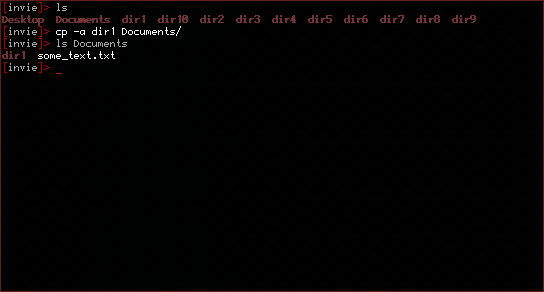
The cp command is actually a very simple command. It copies a file from one place in the file system to another. Say we had a file on the Desktop called "some_text.txt". We wanted to copy that file to our "Documents" directory.

To copy that file:


As you can see, I've both copied the file and then shown you that it is now ALSO in the Documents folder. "But what if we want to move folders? It just tells me that it 'omitted the directory'." - That's why we use the -a option for "archive".


For more, see man cp.

mv

Let's say that we didn't want our text file to be "some_text.txt" anymore, and we wanted to name it "a_text_file.txt". That's where the move command comes in.

But it doesn't just "rename" files, it also allows us to move them too! That's why it's called "move"!


You do not need an option to move a folder.


For more, see man mv.
mkdir


Being able to edit directories is fine, but what about making them? mkdir does this.


rm


What about getting rid of, or r(e)m(oving) the old file that's on the desktop? No problem.


Once again, an option is needed to remove directories. That option is -r.


It is extremely important that you do not remove things you think you might want to recover later with the "rm" command. There is no way to recover those files! To be extra careful, add the -i option to prompt you before every removal!


For more, see man rm.

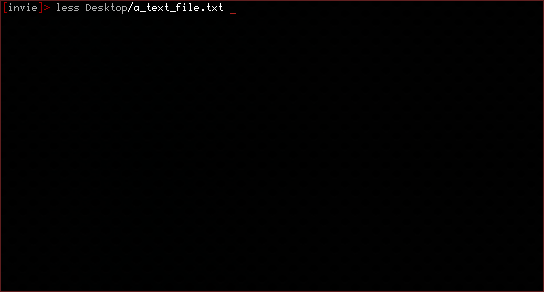
less


The less command just allows you to read your text files.


For more, see man less.

chmod


Remember what we were talking about with permissions? This command allows us to change the permissions of a file. "u" represents the user, "g" represents the group, and "a" represents "all" or everyone.


But what if we wanted to be selfish and make it so that no one but ourselves could see, change, or edit the file?


For more, see man chmod.

chown


But let's say that we wanted to change who owned the file?


For more, see man chown.

If there are any questions or criticisms, feel free to comment.

Tuesday, March 26, 2013

5. Reasons For Why You Should Learn the Terminal (CLI)

I've argued this with my girlfriend, time and time again. "Why do I have to learn the command line? I'm fine, I can do everything without it," she says before something breaks. I honestly sometimes shake my head and sigh when I hear those types of things. I can understand being impatient, but that doesn't mean that you should neglect learning a tool that is apart of your system. You didn't neglect learning how to use an internet browser right? I mean, you managed to get on the computer somehow, don't tell me you didn't have to at least try a few times to learn how to use the windows and your mouse.

I'm here, arguing five of my best reasons for learning the CLI, A.K.A. Command Line Interface.

5. If you don't like being patient, then you should hurry up and learn it then. This logic makes sense, because with Linux, if you don't know what you're doing you're more likely to spend more time with a problem if something breaks. Failing to Google for answers, nagging someone else who knows what they're doing for help, or even just being a little help-vampire all over the boards. In fact, you might become so frustrated that you abandon Linux and Unix operating systems altogether to settle for an even slower, buggier Windows.
 The reason why open-source is better than closed-source is because if something breaks on your open-source system, you're more likely to find lots of documentation, lots of help, and maybe even lots of other people with the same problem as you're having which actually urges developers to work faster to fix the bug. In addition to that statement, sometimes, with Arch [I don't know about the other Distro communities], you'll see that users will band together and use their accumulated knowledge to solve problems that they have with their systems. Even though sometimes it can be a bit rough out there, it's not so much impoliteness as it's just getting to the point.


4. People don't always want to have to solve your problems for you. I mean, the hacker mind-set is that problems can be fun and that everything is broken and needs fixing, but that doesn't mean that they want to help you with the same problem that many other people, somewhere on the internet, have already learned because you're too stubborn to learn something as basic as "tar -jxvf *.tar.bz2". Mind you, it's not bad to ask questions and to seek answers from someone else, but it's bad to actively seek someone to just magically pop up and give you the answer instead of reading a small bit of Documentation all the time. It doesn't work that way, and it isn't fair to those around you.


3. Your system will have less bloat because you'll have apps that won't require a GUI wrapper to function. This is another perfectly logical reason for why you should learn to use the CLI. For example, my girlfriend will go as far as to go to YouTube to find a song, get a Firefox plugin, and then use the plugin and have it download and convert the file to mp3 [of all things] for her.She could have accomplished the searching with three, very simple commands and would have more time to do whatever she wanted while it downloaded in the background, reducing the occasional lag in her system.
Try this, open up a file manager, and open up something like xterm, and then tell me how much of a delay you feel. To see a tutorial on how to navigate and see your files in the CLI, check out my developing tutorial series.


2. Once you learn, you're hooked. The both cool and weird thing about using the terminal is that it becomes a habit of a kind that you won't want to break. Another personal experience that I had while learning the command line, was that once I had gotten my new computer, Windows had become too painful of an experience for me to want to keep for any extended period of time. I just had to get virtual-box and say good riddance! It came to me that I had to literally click on the explorer icon each time in order to navigate my folders. I couldn't change most of the colours to something darker for my light sensitive eyes, and there wasn't even a keyboard shortcut! So I had to feel like a retard every time I pressed ^T (Ctrl-T) and didn't get anything at all! It was so annoying that I wiped my drive and threw Arch on there as soon as was possible, and I didn't even have a dedicated internet connection which just goes to show how much I despise the Windows operating system.
But back on track, after a while, the terminal becomes less of a "hindrance" and more of a tool. Yes, there are times where using the file manager is faster than using the terminal but that depends on from who's point of view, whether or not you can touch type, how fast you type, and how many things you actually keep on your computer. When clutter collects and you need to sort it, a wild card [or asterisk(*)] to get all of your image files into your pictures folder is always a good thing. Want to run programs in the background? Throw a little bit of ampersand(&) spice up in there! The possibilities are limitless, and once you learn commands like sed and grep, you'll be well on your way to proficiency.


1. Self-Sufficiency is a good thing. To be self-sufficient is a big part of being independent and is a greater step towards grown and personal, mental, enrichment. Though there is happiness in ignorance, if that is what you wanted then you should have stayed with Windows, or OSX and just not have even bothered coming this far. It's like going to get water, filling up the buckets, only to walk half way and leave the buckets behind. It just doesn't make sense and isn't the way things were meant to be done. There are commands for a reason, sure there are a lot to memorize, but the only way you're going to do that is by doing it. Not complaining about the difficulty of the feat, not whining about a lack of skill, and certainly not by whining to others about problems that occurred and acting like it is their problem that something on your system broke and you weren't competent enough to fix it.

The Linux Command Line Interface -- System Navigation Tutorial [Part 1]

The linux terminal is a tool that can very easily simplify a lot of different tasks.

I'll be going over 3 system navigation tools, as well as the linux file system, though you'll need to open the terminal first.

Like so:


The key-bindings, distro-to-distro might be different. But on ubuntu it is ctrl+alt+T, the keybinding in awesomewm is actually mod4 + enter [Windowskey-Enter], and that is distro wide.

The Linux File System


The linux file system is a bit like an up-side down tree. It is universal in every linux distro.

A bit like this:


A bit more embedded details:

It is a hierarchy system of directories or "folders" as a windows user might term it. Though it doesn't have a C:\ for the top of all folders inside of the computer, instead, it has / [pronounced root but don't be confused by /root or the root user folder]. When people say "root" they're referring to what is known a "super user" or the highest system administrator imaginable on the system which is why protecting the root password is important. Dot files [.foo, .bar for example] are hidden files that can only be seen by using a specific option with a command. Options change the basic function or behaviour of the command in and of itself as we'll soon learn.

Click here to learn more about the linux file system.

Linux Commands


Commands in the CLI that come with bash, typically work like this:

[COMMAND] [OPTIONS] [ARGUMENTS]

For example:
ls -a /usr/bin

This will show all folders and all dot folders [like .foo] inside of the /usr/bin folder. Options will usually always have a dash (-) in front of them unless it is explicitly told as otherwise. You can use more than one option in a fashion such as:

ls -a -t /usr/bin

This will show all of the things inside of the folder according to their modification date. But that's not all. You can also combine options to form a "super option".

ls -at /usr/bin

 
ls


This is one of the most useful commands that you'll ever use. "ls" stands for List, which means to list all of the files in the directory. Try it out for yourself like in the image below.


This command is useful because it enables us to see what is inside any folder at any given time that the prompt is available and as a result allows us to see what is inside our system. You can use ls to not only see what is inside the current folder, but others as well.


And as you can see from this image, you not only can do one at a time, but more than one if you add them to your "arguments". An example of an option or two thrown in for fun:


cd

The letters "cd" are an abbreviation of the words "Change Directory". Let's say we had a folder called "books" in the home folder. Then all you have to do is type:


And you'd be in the "books" directory. That's all there is to it.

pwd

You know how to get to a folder, and how to see what's inside, but let's say you don't know where in the file-system you are? "pwd" is the answer. To implement it, do:


It'll print the full path in the system, which is pretty useful when you don't know where you are exactly.

Man Pages


To learn more about any command we learned above, and it's optionn, all you'd have to do is type "man [COMMAND]". That's all there is to it.

If there are any questions or criticism, feel free to comment.

Wednesday, February 27, 2013

Learning To Code: Python & Linux = Awesome & How to get started on a Linux Operating System

So, in the short period of time that I've spend using GNU/linux (the last 7 - 7&1/2 months), I've acquired more than enough knowledge about command line editing and system administration. The only things I'm really still fuzzy about are the commands top and find, and that's just a small portion of my coding knowledge. I recently just barely dabbled in the art of Java, C, C++, and Javascript, I already know my HTML and my CSS so well that I really don't google much code anymore (except for a few subjects here and there that I'm also fuzzy about -- I'm talking to you --moz-border). The "CLI anxiety" came away from me when I destroyed my ubuntu set up to attempt to install Archlinux last summer and at first I was a bit upset but then I quickly got over it once I successfully managed to install arch. My point is, I really wanted to learn how to code something other than a half-assed webpage or a weebly layout for some friends. I wanted to screw around with different kinds of code, and even create an RPG but unsurprisingly, Linux lacks some RPG makers and ever since even before I switched from Vista [Lovely Service pack 2~!] I had been trying to learn this programming language called: Python.

You can acquire Python for *nix, Windows, Mac OSX, *bsd's etc, and it's a great programming language to learn as far as my very limited experiences go. But the point is, for a beginning learner of a programming language, the complexity of C, C++, and Java was too extreme for me, while Javascript, I found, well, useless to what I wanted to do. Now, the Python documentation is perhaps helpful for many people, but to me, it was really just a pain in my a**. It didn't explain much of anything, or at least didn't have many examples that had the potential of showing me how I could possibly utilize the tricks that were listed. Call me retarded if you want, but I couldn't work it for my life! Then I found Learn Python The Hard Way which to me is an amazing guide that taught me everything I wanted/needed to know and even answered some of my questions. It was clear to me after a while of reading the Python Documentation that it was definitely not geared towards newbies to programming and programming languages.

It was useless for me to try and figure out where I was going with it, because it gradually began to confuse me as I read it without any other form of foundation. That is what most linux users aspiring to write code need in my personal belief. For those interested in learning a programming language, for those ubuntu users who just recently switched from Windows, or for those who are in the process of doing so, or even those who just want to know how to use the command line, I suggest to you download the e-book on Linuxcommand.org and get to reading. You don't even have to devote a lot of time to learning what you read because that guide is so basic that it's not even funny. The youtube user metalx1000 has a ton of bash tutorials and such.

Getting back on track, one who is interested in getting started on learning how to program should look into lifehacker's javascript guide, because it teaches some foundational things, especially for those who decide that they want to dive right into Java code. But this is all in my opinion, everyone has a different way of learning and they might actually find the Python Documentation a lot easier to learn than I might. The Internet is crawling with options, do what goes best with you.